
Summary



Atlanta-based Focus Brands Inc. is a franchiser and manager of many popular food
service brands like Moe’s, Auntie Anne’s, Cinnabon etc. Each of these brands curate
their research independently, as well as in association with Focus Brands, using
myriad of tools, platforms and services.
Difficulty
in searching
Redundant
research artifacts
However, this distributed structure makes it difficult to define
and enforce a singular process, or toolset, for managingaccessing internal research collections, leading to problemslike:
Lack of
organization
Lack of collaboration,
communication & sharing
Atlanta-based Focus Brands Inc. is a franchiser and manager of many popular food service brands like Moe’s, Auntie Anne’s, Cinnabon etc. Each of these brands curate their research independently, as well as in association with Focus Brands, using a myriad of tools, platforms and services.
However, this distributed structure makes it difficult to define and enforce a singular process, or toolset, for managing & accessing internal research collections, leading to problems like:
Redundant
research artifacts
Difficulty
in searching
Lack of
organization
Lack of collaboration,
communication & sharing
For this, Focus Brands partnered with Georgia Tech’s HCI program to re-
envision their internal knowledge management system, from ground up
Identifying potential methods of consolidating research artifacts acrossthe company into a single repository that is sharable, accessible andevident for potential business decisions.
It was aimed at




We evaluated the status quo of different researchrepositories housed in Focus Brands to find gaps inharvest, consumption, organization and communication ofresearch artifacts.
Once the gaps were identified, we designed differentextensions for their current platforms to bridge these. Theaim was to enhance users’ productivity, while keeping thelearning curve of adapting to a new platform gradual.
Research
Harvest
Communication
Organization
Consumption
We evaluated the status quo of different research repositories housed in Focus Brands to find gaps in harvest, consumption, organization and communication of research artifacts.
Research
Harvest
Communication
Organization
Consumption
Once the gaps were identified, we designed different extensions for their current platforms to bridge these. The aim was to enhance users’ productivity, while keeping the learning curve of adapting to a new platform gradual.




PROCESS
Research
Analyze
Design
Ideate
Test
Task-based User Testing
Usability Testing (SUS)
NASA TLX
Learnability assessment
Prototype Refinement
Narrative walkthrough
Storyboarding
Brainstorming
Idea synthesis
Designed alternatives
Concept Sketching
Paper prototype
Wireframes
User flowsSystem designInteractive prototype
Task Analysis
Affinity mapping
Empathy Mapping
User Persona
Secondary research
Open Interviews
Semi-structuredInterviewsRemote Observation
Cognitive Walkthrough
PROCESS
Research
Secondary research
Open Interviews
Semi-structured Interviews
Remote Observation
Cognitive Walkthrough
Analyze
Task Analysis
Affinity mapping
Empathy Mapping
User Persona
Ideate
Narrative walkthrough
Storyboarding
Brainstorming
Idea synthesis
Designed alternatives
Design
Concept Sketching
Paper prototype
Wireframes
User flows
System design
Interactive prototype
Test
Task-based User Testing
Usability Testing (SUS)
NASA TLX
Learnability assessment
Prototype Refinement
ROLE
Research
& Analysis
Conducted secondary research, open & semi-structured user interviews and cognitive walkthrough. Performed Task analysis, Affinity Maps and Empathy maps
Ideate
Brainstormed different design alternatives, developed narrative walkthrough, conceptualized the alternatives
Design
Sketched concepts, made paper prototypes and developed wireframes. Conducted user studies for design feedback and refined wireframes into interactive prototype for the Microsoft Sharepoint based plug-ins for
Test
Conducted task based usability testing sessions, along with think-aloud technique. Refined concept design feedback.
Problem Space




The current users of the research infrastructure at Focus Brands is a large, mixed population that includes brand managers, marketing
directors, customer analytics teams, and many others.
Teams at Focus Brands vary in their approach towards research storagethrough the usage of different tools, folder structures, and namingconvention. This variance in approach has made the process of findingrelevant research artifacts across the company difficult, as it often requires alot of intuition in folder navigation, keyword searching, and word-of-mouthinvestigation.
The current users of the research infrastructure at Focus Brands is a large, mixed population that includes brand managers, marketing directors, customer analytics teams, and many others.
Teams at Focus Brands vary in their approach towards research storage through the usage of different tools, folder structures, and naming convention. This variance in approach has made the process of finding relevant research artifacts across the company difficult, as it often requires a lot of intuition in folder navigation, keyword searching, and word-of-mouth investigation.



For this, there is a need for a centralized repository and a standardized procedure for managing research artifacts
Provide a single access point
for research
Allow for faster and more
efficient data gathering
Increased project turnover
Reduce the risk of losingartifacts when employeesleave the company.
A centralized repository
& standardized interface would
resulting into
Lower redundant research
Streamline the process forfinding & accessing relevantresearch
Improved employee efficiency
Reduce the need to keepresearch in impermanentplaces like personal email.
For this, there is a need for a centralized repository and a standardized procedure for managing research artifacts
& standardized interface would
- Provide a single access point for research
- Allow for faster and more efficient data gathering
- Reduce the risk of losing artifacts when employees leave the company.
- Streamline the process for finding & accessing relevant research
- Reduce the need to keep research in impermanent places like personal email.
resulting into
Increased project turnover
Lower redundant research
Improved employee efficiency
Our Solution




We originally considered the idea of introducing a brand new centralized system for managing research artifacts. However, as our
need to work with multitude of tools. Our solution would be a mere add-on.
Hence, we decided to retrofit our designs into their existing system as “add-ons” or “plugins”
For this research project, we developedadd-ons for Microsoft Sharepoint
because of:
highly
customizable interface
support for
3rd party plugins
familiraity
at Focus Brands
We originally considered the idea of introducing a brand new centralized system for managing research artifacts. However, as our research progressed, it became evident that this approach would not quite resonate with Focus Brands employees, since they already need to work with multitude of tools. Our solution would be a mere add-on.
Hence, we decided to retrofit our designs into their existing system as “add-ons” or “plugins”
For this research project, we developed add-ons for Microsoft Sharepoint because of:
highly
customizable interface
support for
3rd party plugins
familiraity
at Focus Brands


Disclaimer
The images used here are purely for informational purposes and their contents
do not represent any actual Focus Brands system, data or personnel information
We designed plug-ins for 4 user flows
Disclaimer
The images used here are purely for informational purposes and their contents do not represent any actual Focus Brands system, data or personnel information
We designed plug-ins for 4 user flows
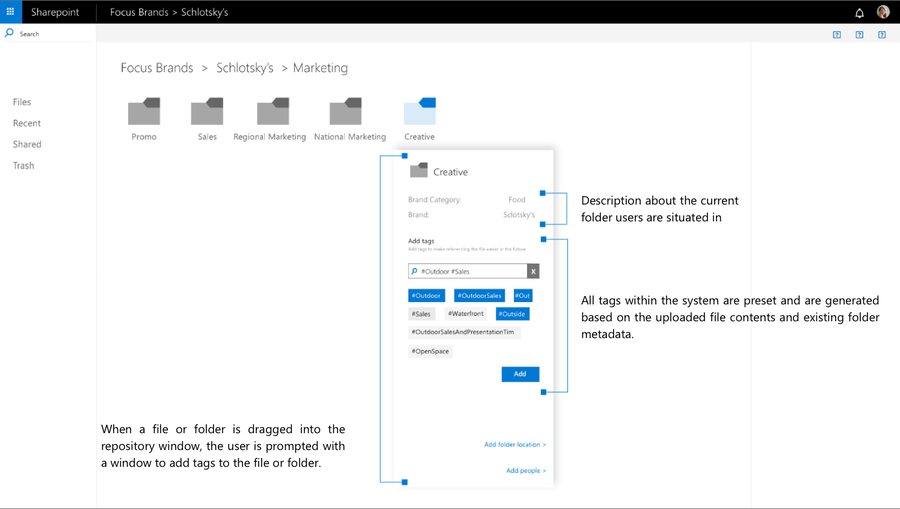
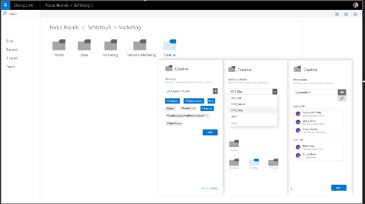
- When a file or folder is dragged into the repository window, the user is prompted with a window to add tags to the file or folder.
- Description about the current folder users are situated in
- All tags within the system are preset and are generated based on the uploaded file contents and existing folder metadata.
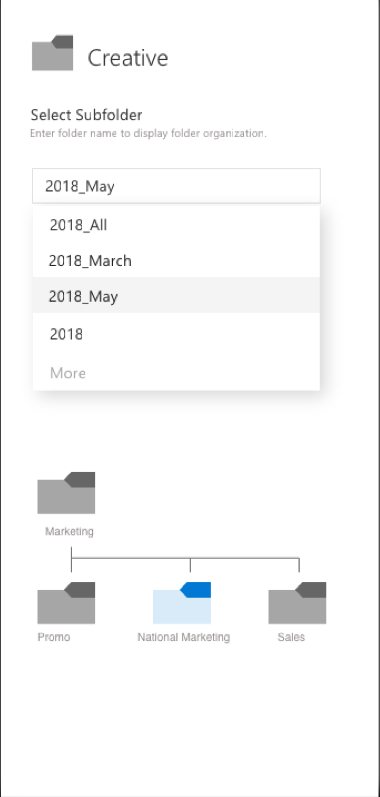
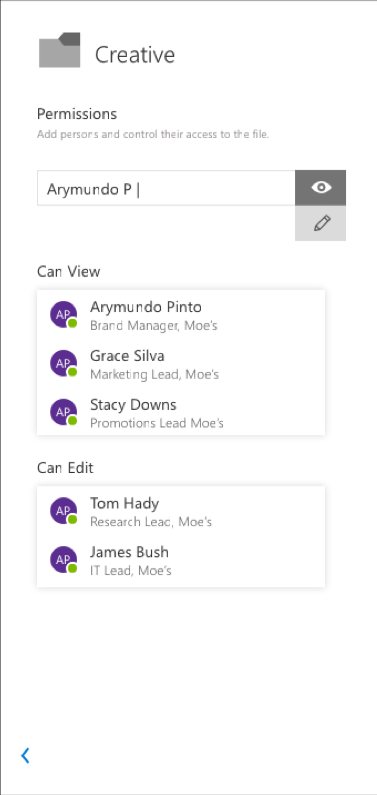
Users can annotate each new file or folder with additional
metadata options as shown in the images here
Select Subfolder
Permissions
This window allows the user todirectly place the new file intoan appropriate subfolder withinthe folder hierarchy.
The user can choose thepeople who have access to theadded file and set the accesspermissions for them as well.
Users can annotate each new file or folder with additional metadata options as shown in the images here
- Select SubfolderThis window allows the user to directly place the new file into an appropriate subfolder within the folder hierarchy.
- PermissionsThe user can choose the people who have access to the added file and set the access permissions for them as well.
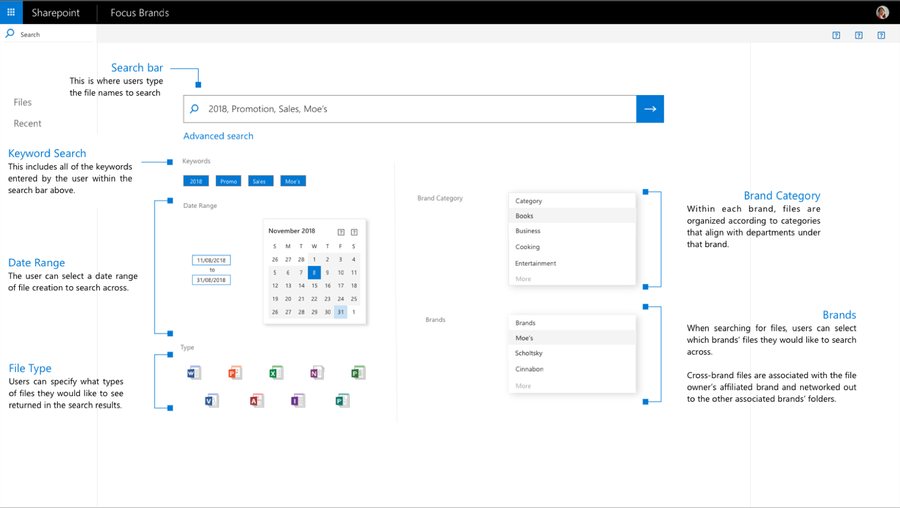
- Search barThis is where users type the file names to search
- Keyword SearchThis includes all of the keywords entered by the user within the search bar above.
- Date RangeThe user can select a date range of file creation to search across.
- File TypeUsers can specify what types of files they would like to see returned in the search results.
- Brand CategoryWithin each brand, files are organized according to categories that align with departments under that brand.
- BrandsWhen searching for files, users can select which brands’ files they would like to search across.
Cross-brand files are associated with the file owner’s affiliated brand and networked out to the other associated brands’ folders.
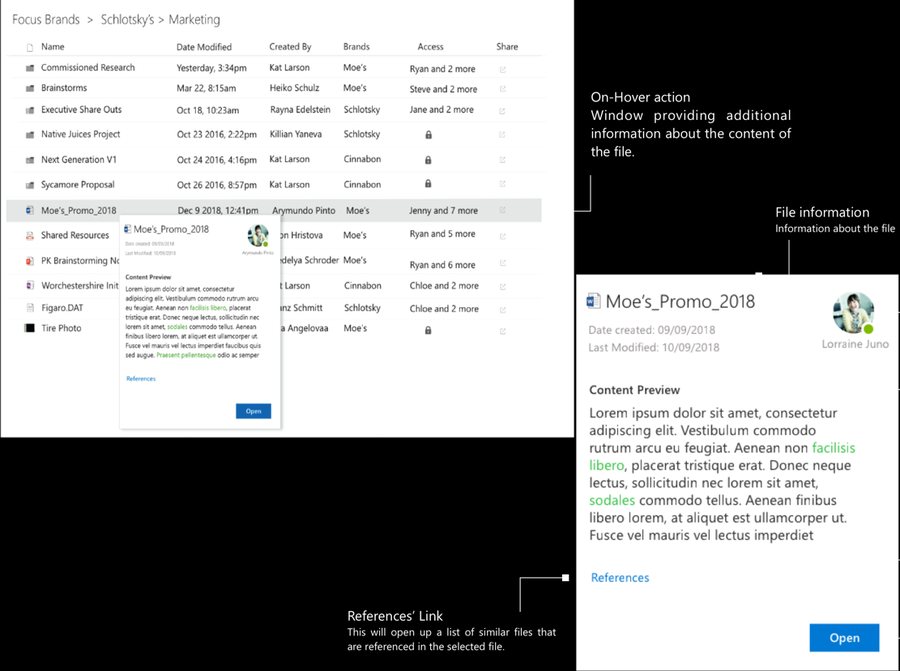
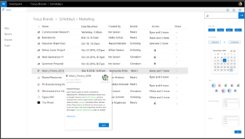
Content Preview functionality provides a quick overview of the contents ofthe file or folder so that users don’t have to open them every time tounderstand the context of the artifact.
File owner
Information about who
owns the file, i.e., who
the file creator is.
Content PreviewProvides asmall sample of the contents ofthe selected file. Any searched keywordsare highlighted to help the user to gaugethe file’s relevance to the user’s needs.
Open
Ppen n the file if relevant
Content Preview functionality provides a quick overview of the contents of the file or folder so that users don’t have to open them every time to understand the context of the artifact.
- On-Hover actionWindow providing additional information about the content of the file.
- File informationInformation about the file
- File ownerInformation about who owns the file, i.e., who the file creator is.
- Content PreviewProvides asmall sample of the contents of the selected file. Any searched keywords are highlighted to help the user to gauge the file’s relevance to the user’s needs.
- References’ LinkThis will open up a list of similar files that are referenced in the selected file.
- OpenPpen n the file if relevant
Sharing
Contact Card
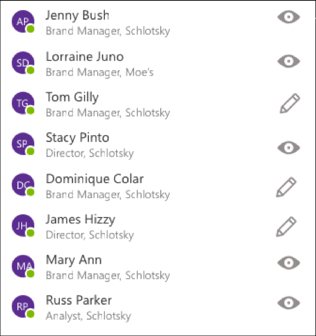
Access List
This the list of users who have access to the
selected file. Clicking on a user within this list
will open up that user’s respective contact
card.
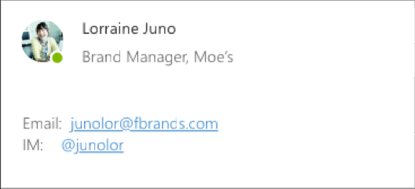
The contact card displays relevant contactinformation of the selected user, such as theuser’s name, role, and affiliated brand, as wellas the user’s e-mail address and in-office chathandles.
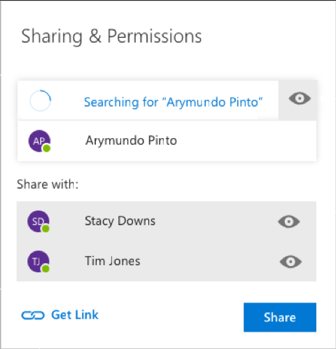
This allows user to share a file from within thislist. They can also choose to create a genericlink, as well as and set the permissions foreach of the users.
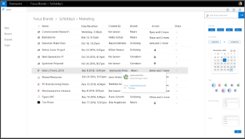
- Contact CardThe contact card displays relevant contact information of the selected user, such as the user’s name, role, and affiliated brand, as well as the user’s e-mail address and in-office chat handles.
- Access ListThis the list of users who have access to the selected file. Clicking on a user within this list will open up that user’s respective contact card.
- SharingThis allows user to share a file from within this list. They can also choose to create a generic link, as well as and set the permissions for each of the users.

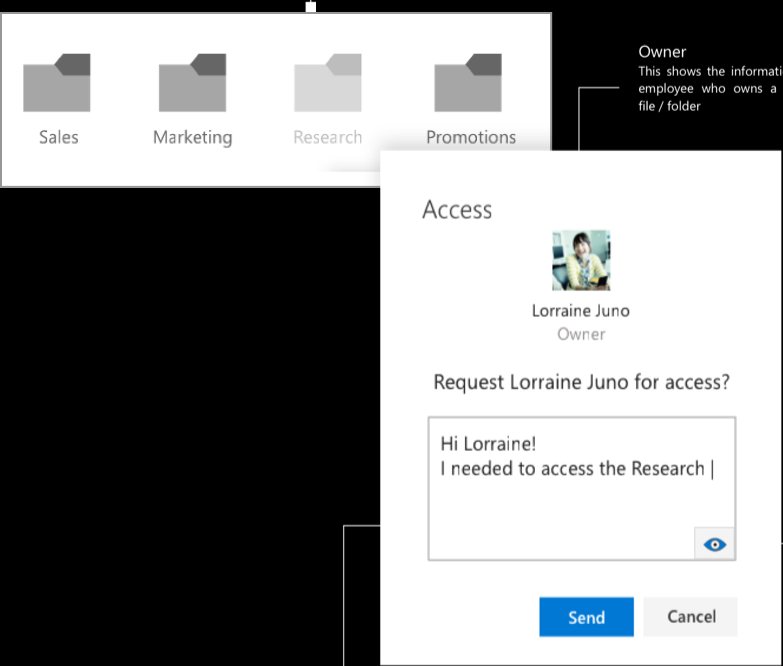
Restricted AccessThe folders that user cannot access willbe visually distinguished from the others
to inform user of the restriction.
RequestNoteThere is a social aspect to requestingaccess of an artifact from a person.
This is preserved in this feature that
allows user to describe the reason
behind access request
PermissionUser can specify in theirrequest whatkind of access
will they need for the
particular artifact
- Restricted AccessThe folders that user cannot access will be visually distinguished from the others to inform user of the restriction.
- OwnerThis shows the information of the employee who owns a particular file / folder
- RequestNoteThere is a social aspect to requesting access of an artifact from a person. This is preserved in this feature that allows user to describe the reason behind access request
- PermissionUser can specify in their request whatkind of access will they need for the particular artifact


NotificationThe owner/creator of the file receivesa notification when anyone requests
access to the file.
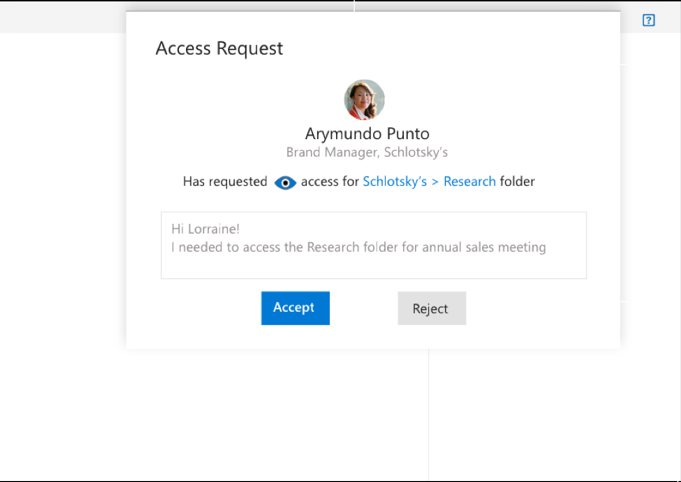
Requester’s informationThis shows the requester’s workprofile to give an idea of who has
raisedtherequest
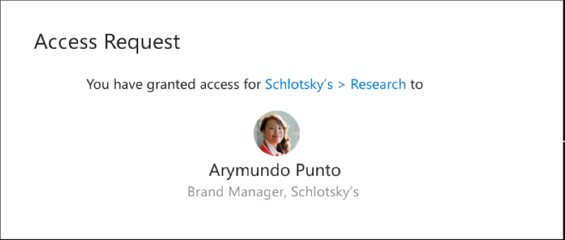
Requestee’s viewThis shows the requestee’snotification view, when access has
been granted.
This shows relevant information about therequest, including the folder whose access hasbeen requested, the kind of permissionsrequested and the message from the
requester for more context.
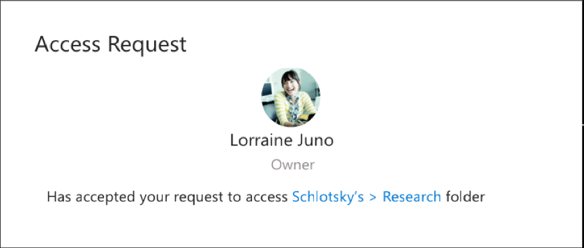
Requester’s view
This shows the requester’s
notification view, when access
hasbeengranted.
This shows relevant information about therequest, including the folder whose access hasbeen requested, the kind of permissionsrequested and the message from the
- NotificationThe owner/creator of the file receives a notification when anyone requests access to the file.
- Requester’s informationThis shows the requester’s work profile to give an idea of who has raisedtherequest
- This shows relevant information about the request, including the folder whose access has been requested, the kind of permissions requested and the message from the requester for more context.
- Requestee’s viewThis shows the requestee’s notification view, when access has been granted.
- Requester’s viewThis shows the requester’s notification view, when access hasbeengranted.



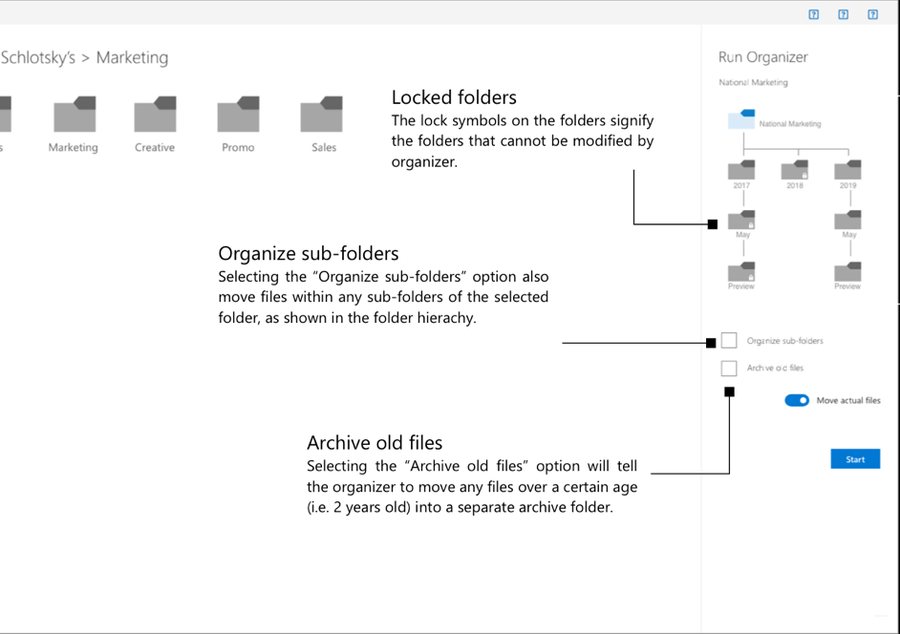
Folder StructureThe organizer displays thehierarchy offolders under
the sel elected fol Ider.
y’s
Move actual filesBy default, the organizer will first suggestmovements of files for the user to verify
before actually moving the file. Toggling this
option on will tell the organizer to move files
to their suggested destination without the
need for user verification.
y’s
- Folder StructureThe organizer displays the hierarchy offolders under the sel elected fol Ider.
- Locked foldersThe lock symbols on the folders signify the folders that cannot be modified by organizer.
- Organize sub-foldersSelecting the “Organize sub-folders” option also move files within any sub-folders of the selected folder, as shown in the folder hierachy.
- Archive old filesSelecting the “Archive old files” option will tell the organizer to move any files over a certain age (i.e. 2 years old) into a separate archive folder.
- Move actual filesBy default, the organizer will first suggest movements of files for the user to verify before actually moving the file. Toggling this option on will tell the organizer to move files to their suggested destination without the need for user verification.


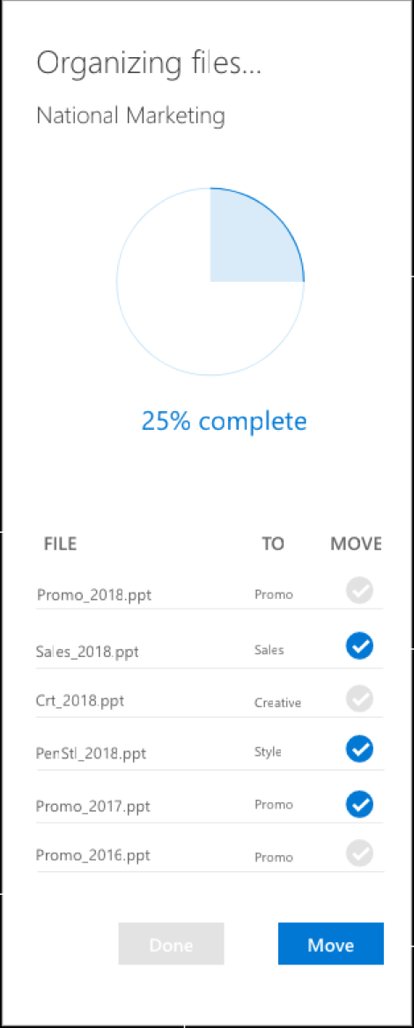
ProgressThe progress ring informsthe user of how much of
tha organizer’s task has
been completed
ChoosingThe user can verify a suggestedmove by clicking the checkmark
icon next to the movement they
would like to carry out.
RecommendationsWhen the file organizer is running, if the“Move actual files” option is turned off, the
organizer will suggest destinations for files
that it believes should be moved based off
of comparisons of tags between the file and
folders.
Actual MovementOnce the “Move” button is clicked,all selected movements will be
carried out while the organizercontinues to suggest additionalmovements to be made.
DoneThis signifies that all movement hasbeen completed and that the user is
satisfied with the choices made.
- ProgressThe progress ring informs the user of how much of tha organizer’s task has been completed
- ChoosingThe user can verify a suggested move by clicking the checkmark icon next to the movement they would like to carry out.
- RecommendationsWhen the file organizer is running, if the “Move actual files” option is turned off, the organizer will suggest destinations for files that it believes should be moved based off of comparisons of tags between the file and folders.
- Actual MovementOnce the “Move” button is clicked, all selected movements will be carried out while the organizer continues to suggest additional movements to be made.
- DoneThis signifies that all movement has been completed and that the user is satisfied with the choices made.


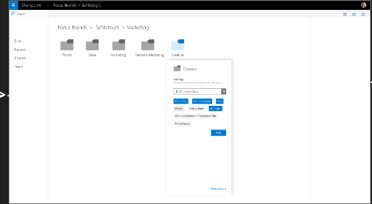
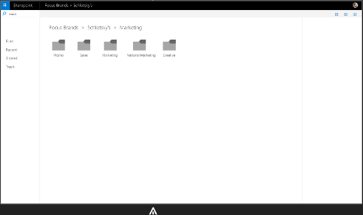
User Flows
File upload & tagging
Adding tags when
saving the file
Dropping file into
shared space
More Options
File saved
Adding folder tags and
people for sharing
User Flows

File upload & tagging
Adding tags when
saving the file
Dropping file into
shared space
More Options
File saved
Adding folder tags and
people for sharing
Swipe sideways to see the whole diagram




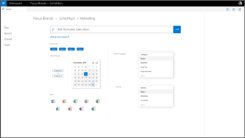
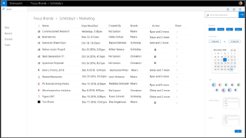
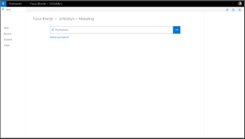
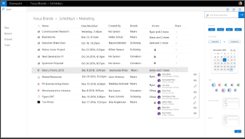
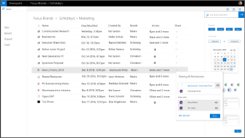
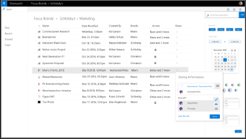
Searching
Content Preview
People’s preview
Advanced Search
Search results, with details
Main Search Page
List of people with access
Sharing options
Changing permissions

Searching
Content Preview
People’s preview
Advanced Search
Search results, with details
Main Search Page
List of people with access
Sharing options
Changing permissions
Swipe sideways to see the whole diagram


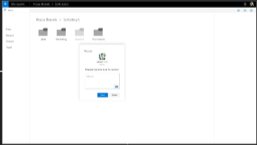
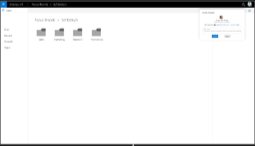
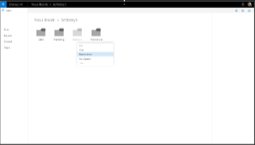
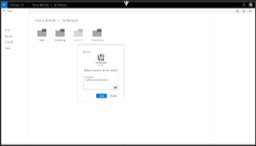
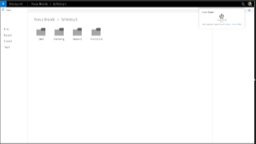
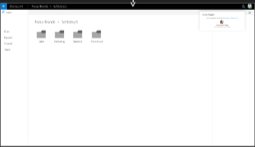
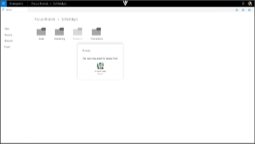
Access request
Request Access dialog box
Owner gets a notification for access request
Notification when request is accepted
Adding a note and access level (view/edit)
User doesn’t have access to Research folder
Owner accepts the request
Request sent
Requestee’s view
Requester’s view

Access request
Request Access dialog box
Owner gets a notification for access request
Notification when request is accepted
Adding a note and access level (view/edit)
User doesn’t have access to Research folder
Owner accepts the request
Request sent
Requestee’s view
Requester’s view
Swipe sideways to see the whole diagram



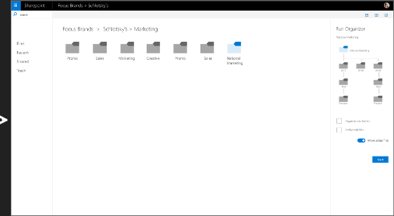
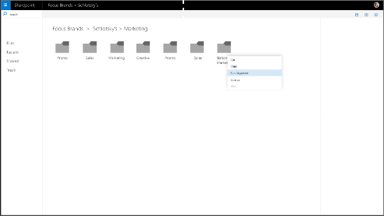
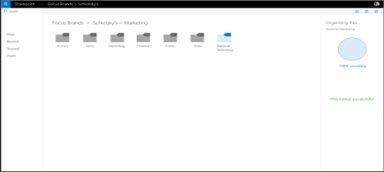
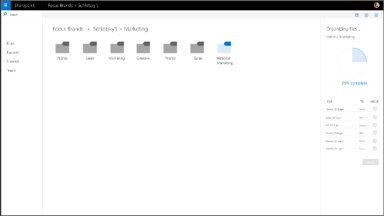
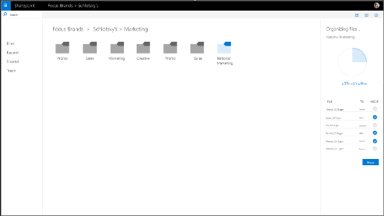
Auto-organization
Choose options when organizing
Success report
Right click action
Organization suggestions
Moving files based on suggestions

Auto-organization
Choose options when organizing
Success report
Right click action
Organization suggestions
Moving files based on suggestions
Swipe sideways to see the whole diagram
Interactive Prototype
Click on the image below for experience
Behind The Curtains


Stage 1: Research
Given that our team is working with an industry partner, the time and access tocompany resources (both people and documentation) was limited. Within theseconstraints, we strived to understand the user context, needs and pain-pointsthrough following







Research Methods
Secondary research
Cognitive Walkthrough
Open ended Interviews
Semi-structured interviews
Remote Observation
(With Think Aloud)
Information Goals
Challenges
Goals
Team Structure
What is research?
How people
search
How is reseach
shared
How is research
gathered
How users communicate
with one another
Research Methods
Secondary research
Open ended Interviews
Remote Observation
(With Think Aloud)
Semi-structured interviews
Cognitive Walkthrough
Information Goals
- Team Structure
- What is research?
- How is research gathered
- How users communicate with one another
- How is reseach shared
- How people search
- Challenges
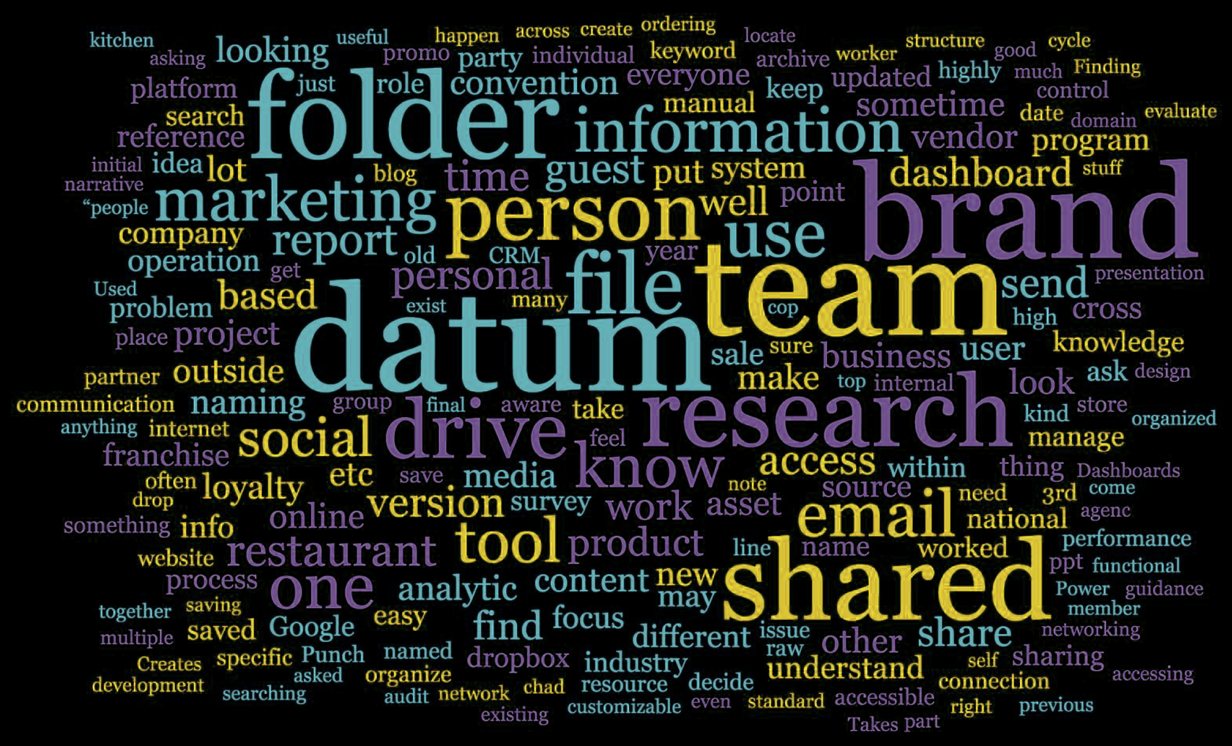
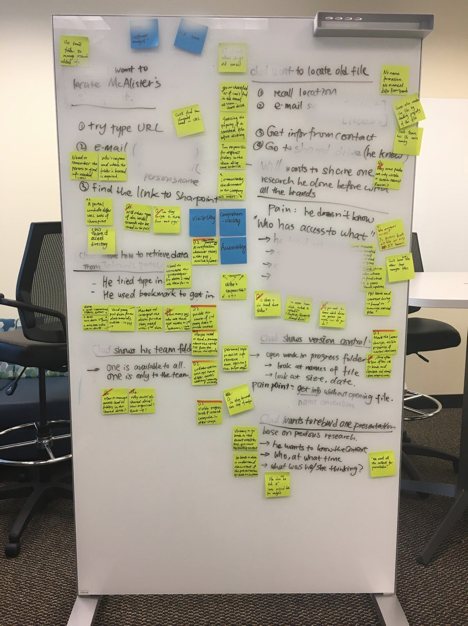
Initial themes
Initial themes




Stage 2: Analysis
Analysis of remote observations
All the information gathered previous phase from the interviews,observations and contextual inquiries was mapped to and analysed usinga number of methods.
Methods
Affinity
diagramming
Task
Analysis
Empathy
mapping
User
Personas
Note: Some information was redacted given its sensitive nature
Stage 2: Analysis
All the information gathered previous phase from the interviews, observations and contextual inquiries was mapped to and analysed using a number of methods.
Methods
Affinity
diagramming
Task
Analysis
Empathy
mapping
User
Personas
Note: Some information was redacted given its sensitive nature
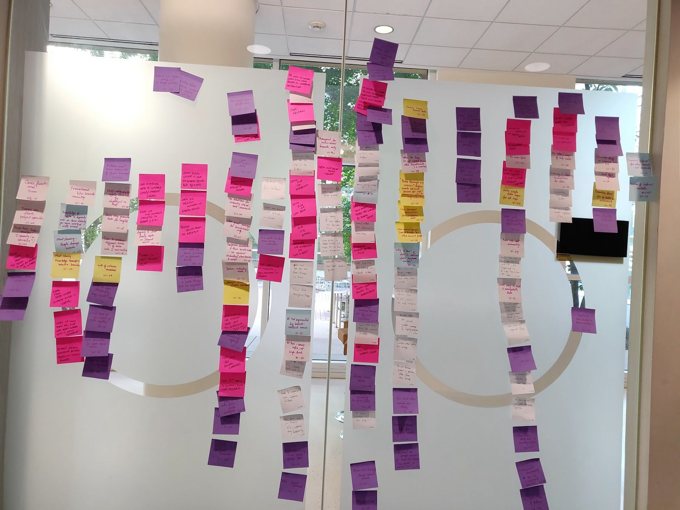
Affinity Diagramming
Given the sheer amount of data collected from hours ofinterviews, remote observations and secondary research by theteam, the affinity diagram provided us with a way to parsethrough it collectively.




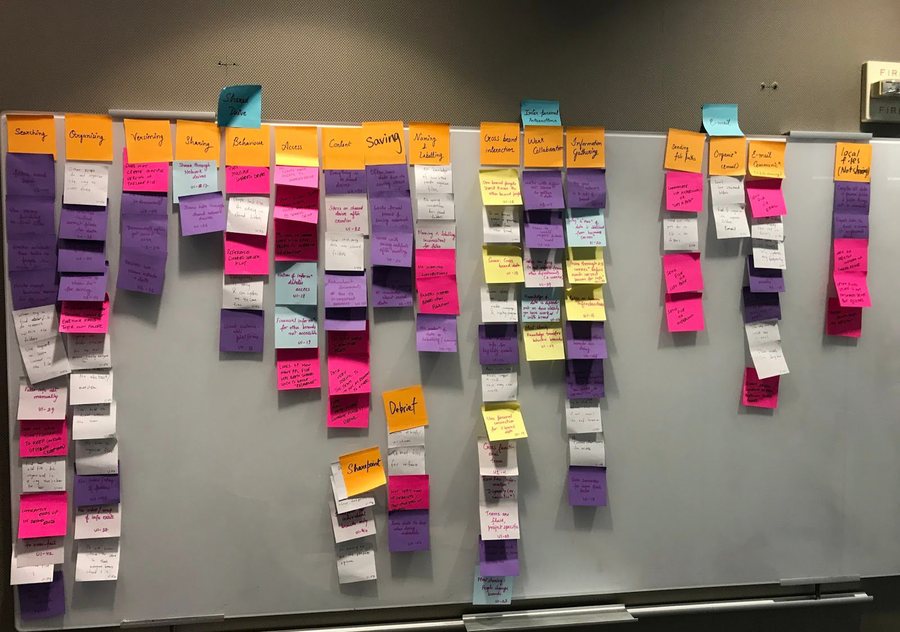
The image below showcases the major areas of focus that emerged during this process
The image below showcases the major areas of focus that emerged during this process

Findings
Shared drives
Content management
systems (eg: Sharepoint)
The user group at Focus Brands uses various kinds of tools and
platforms to save, access, search and share the research artifacts
Tools & platforms
in use
Services like onedrive,
dropbox, box etc.
Business Intelligence &
CRM Tools
Findings
The user group at Focus Brands uses various kinds of tools and platforms to save, access, search and share the research artifacts
in use
- Shared drives
- Content management systems (eg: Sharepoint)
- Services like onedrive, dropbox, box etc.
- Business Intelligence & CRM Tools
Apart from tools and platforms, we analyzed the different ways in which the user group interacted with the existing research system
- Storing ResearchInconsistent folder hierarchy, no protocol for saving, naming and labelling, lack of process
- Multiple platformsIt is hard for users to keep track of all platforms.
- File contextUsers cannot understand the context of a file without going through it
- Research AccessNo central way to manage access of resources

Personal preference
Interpersonal Communication
Some prefer a quick way of
storing and saving data in the
system, while others take the time
to manage and organize.
Users talk to peers to get morecontext about an artifact. This issometimes difficult across brands
Emerging themes
Searching
Sharing
Searching by intuition or asking
people.
Users have inconsistent sharing
habits.
- Interpersonal CommunicationUsers talk to peers to get more context about an artifact. This is sometimes difficult across brands
- Personal preferenceSome prefer a quick way of storing and saving data in the system, while others take the time to manage and organize.
- SearchingSearching by intuition or asking people.
- SharingUsers have inconsistent sharing habits.
- Associated peopleThere is no clear information on the people associated with artifacts.
- ArchivingUsers have different preferences on where to archive their research files.


Retrieving the relevant research filesIf location is known, then navigate to the filesStored or saved the files themselves on Sharepoints and Shared driveReceive the path of the files on Sharepoints and Shared drive via emailHave the directly emailed files from othersIf location is unknownGo through folders in different platforms in the research repositoryNavigate through the foldersKeyword searchGuess the locationIf still not able to findAsk relevant people via EmailAsk relevant people in personWorking on research filesAnalyzing research filesEditing existing files for useCreating new filesSharing research files with othersSend out the files via emailUpload to Sharepoint or shared driveChoose which folder is suitable for the filesCreate new folders for the filesUser may choose to email out the path or location of the files to relevantpeopleDo not share, save on personal drive
Retrieving the relevant research files
If location is known, then navigate to the files
Stored or saved the files themselves on Sharepoints and Shared drive
Receive the path of the files on Sharepoints and Shared drive via email
Have the directly emailed files from others
If location is unknown
Go through folders in different platforms in the research repository
Navigate through the folders
Keyword search
Guess the location
If still not able to find
Ask relevant people via Email
Ask relevant people in person
Working on research files
Analyzing research files
Editing existing files for use
Creating new files
Sharing research files with others
Send out the files via email
Upload to Sharepoint or shared drive
Choose which folder is suitable for the files
Create new folders for the files
User may choose to email out the path or location of the files to relevant people
Do not share, save on personal drive
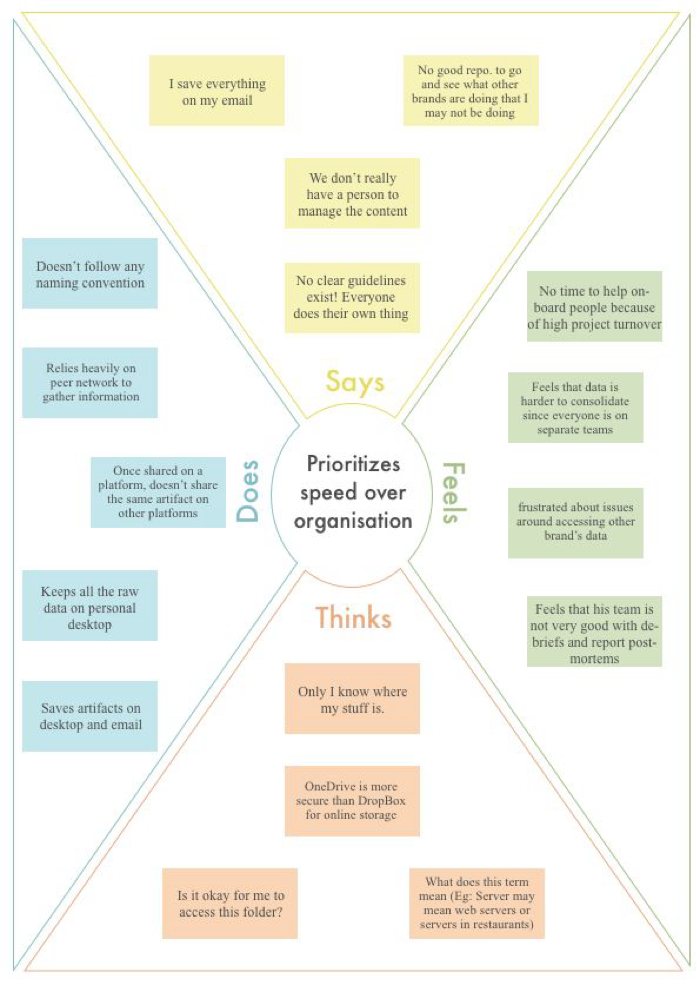
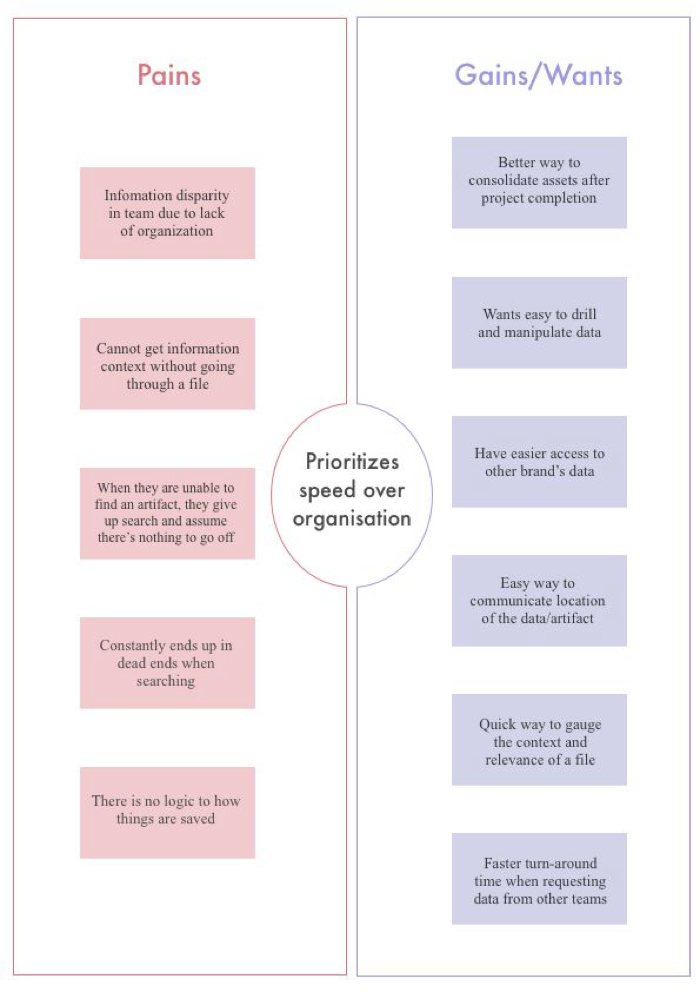
People who prioritize speed over organization
People who prioritize speed over organization
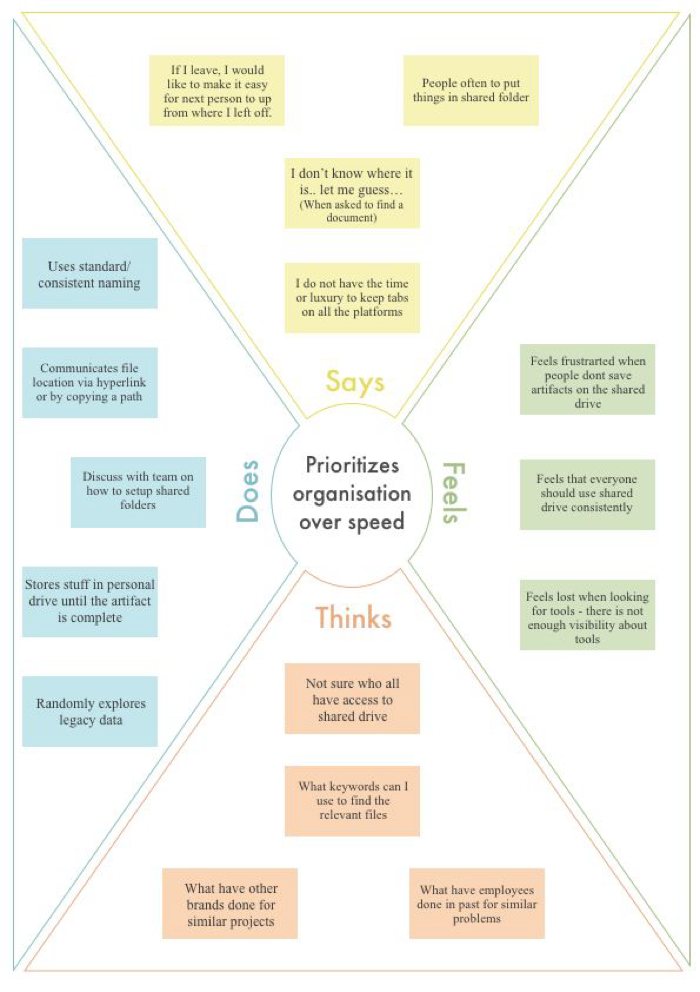
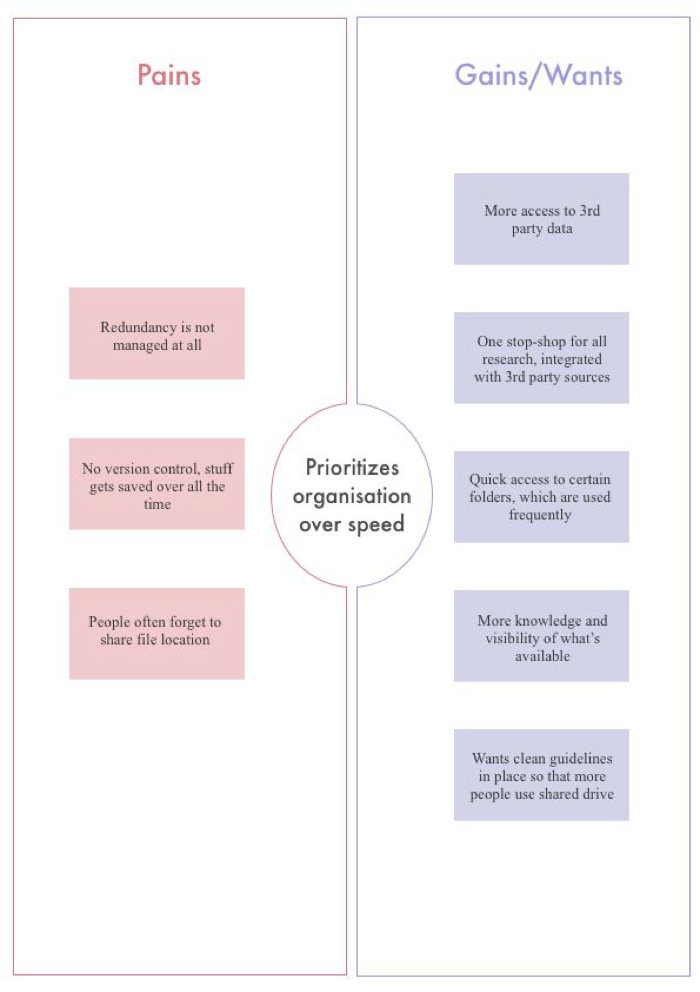
People who prioritize organization over speed
People who prioritize organization over speed
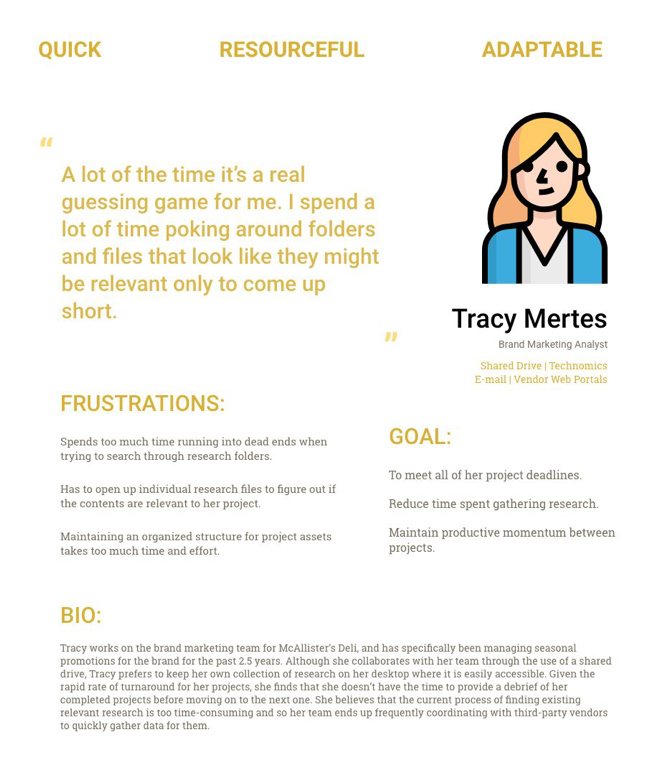
User Personas
The empathy maps helped us derive user personas whch allowed us to step into the shoes of our user group and approach n the
problem with their perspective.
User who prioritizes speed over organization
User Personas
The empathy maps helped us derive user personas whch allowed us to step into the shoes of our user group and approach n the problem with their perspective.
User who prioritizes speed over organization
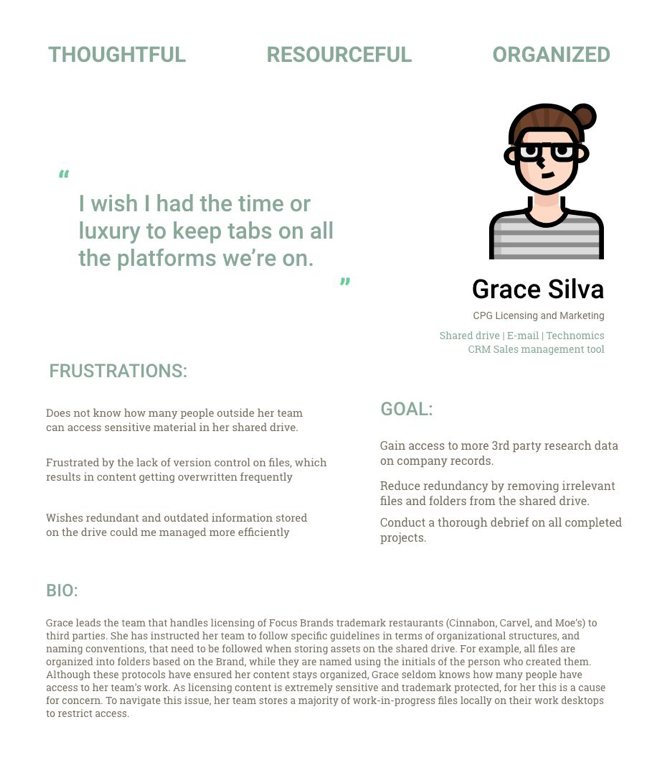
User who prioritizes organization over speed
User who prioritizes organization over speed
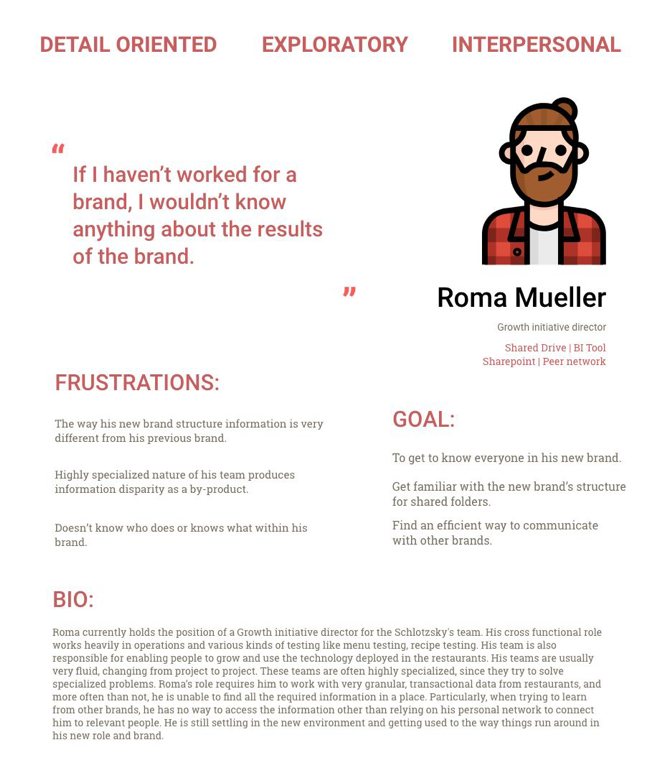
In addition to the 2 groups identified, we had another group of users which had transitioned to thecompany or to a brand recently. It was difficult to classify them in either of the categories, simply becausetheir pain points arose from a lack of familiarity with the system. So we derive a third persona:
User who is new to a brand
(new employee, or a person who recently switched teams)
In addition to the 2 groups identified, we had another group of users which had transitioned to the company or to a brand recently. It was difficult to classify them in either of the categories, simply because their pain points arose from a lack of familiarity with the system. So we derive a third persona:
User who is new to a brand(new employee, or a person who recently switched teams)




Source: https://goo.gl/images/Npx7XB
Source: https://goo.gl/images/wG7HBS
Source: https://goo.gl/images/4LfAp6
Roma just joined Focus Brands as anew employee. As part of his firstweek at work, he’s browsing throughhis team’s shared drive.
He comes across a past project undera different brand that he thinks wouldbe relevant to the work he’s doing.Unfortunately, he does not know whoworked on the project.
He decides to email people workingwithin that specific brand, and waitsfor a response.
Disclaimer
The images and narration used here is purely for informational purposes and do not represent any actual Focus Brands system, data or personnel information
Source: https://goo.gl/images/4LfAp6
Roma just joined Focus Brands as a new employee. As part of his first week at work, he’s browsing through his team’s shared drive.
Source: https://goo.gl/images/Npx7XB
He comes across a past project under a different brand that he thinks would be relevant to the work he’s doing. Unfortunately, he does not know who worked on the project.
Source: https://goo.gl/images/wG7HBS
He decides to email people working within that specific brand, and waits for a response.



Source: https://bit.ly/2QtpCnh
Source: https://bit.ly/2se06bU
Source: https://goo.gl/images/11CAkT
He decides to find out more infoabout the file and who created itthrough his personal network withinthe office. This proves more fruitful interms of responses, but nobody hasrecord of who worked on that projectanymore.
Frustrated, he assumes that theperson either no longer works andhence that he can no longer accesstheir research
A week passes, the person he reachedout to still hasn’t responded. It islikely that they are busy with theirown projects and his request is lowpriority
Source: https://goo.gl/images/11CAkT
A week passes, the person he reached out to still hasn’t responded. It is likely that they are busy with their own projects and his request is low priority
Source: https://bit.ly/2se06bU
He decides to find out more info about the file and who created it through his personal network within the office. This proves more fruitful in terms of responses, but nobody has record of who worked on that project anymore.
Source: https://bit.ly/2QtpCnh
Frustrated, he assumes that the person either no longer works and hence that he can no longer access their research

Source: https:/bit.ly/2RgV8u5
He decides go to a third party vendorand buy data that would have beencovered by that file.
Source: https:/bit.ly/2RgV8u5
He decides go to a third party vendor and buy data that would have been covered by that file.
Stage 3: Ideation
File Tagging
Searching
The analysis of all the data collected presented to us withmultiple sectors for design intervention. We thencollected all of the ideas together and grouped them intomajor themes:
File Access & Sharing
Themes for design
intervention
File Organization
Notification for management
All-in-one dashboard
Stage 3: Ideation
The analysis of all the data collected presented to us with multiple sectors for design intervention. We then collected all of the ideas together and grouped them into major themes:
intervention
- File Tagging
- Searching
- File Access & Sharing
- File Organization
- Notification for management
- All-in-one dashboard
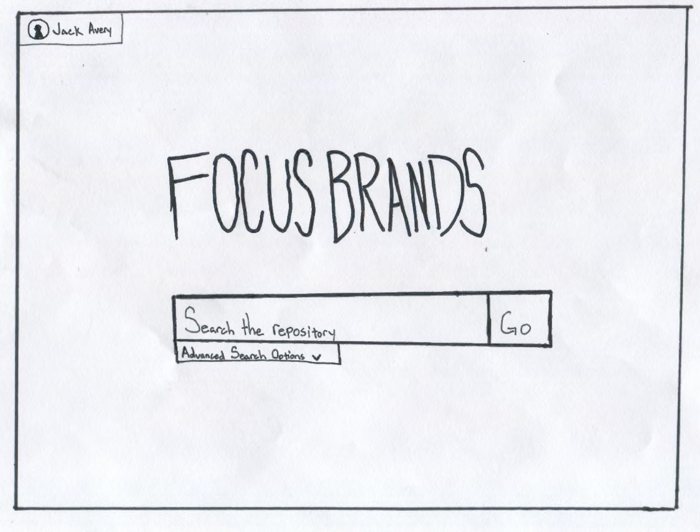
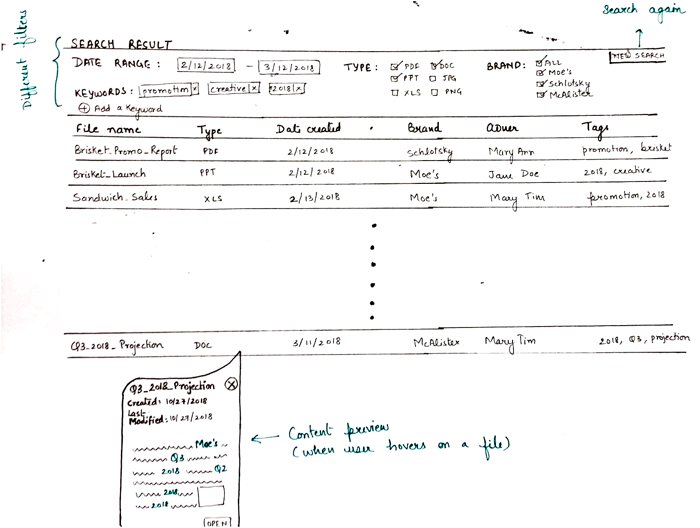
Search results, list view, content preview functionality
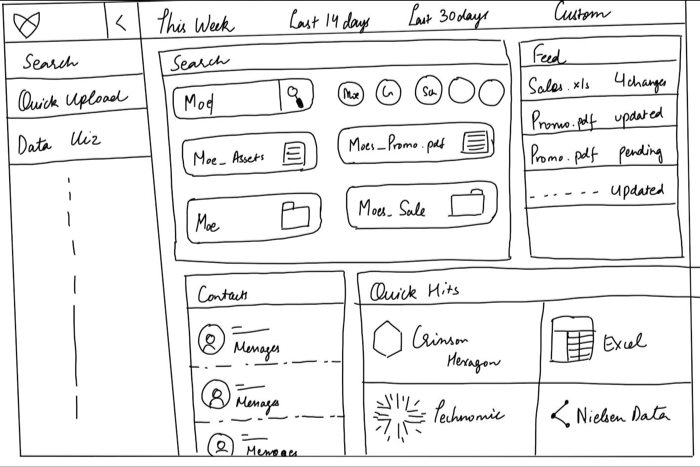
Home screen for search
Concept 2: File Access & sharing
Concept 2: File Access & sharing
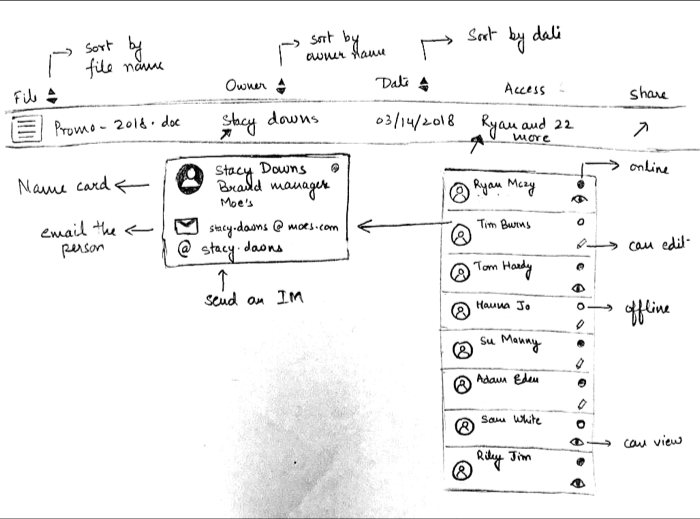
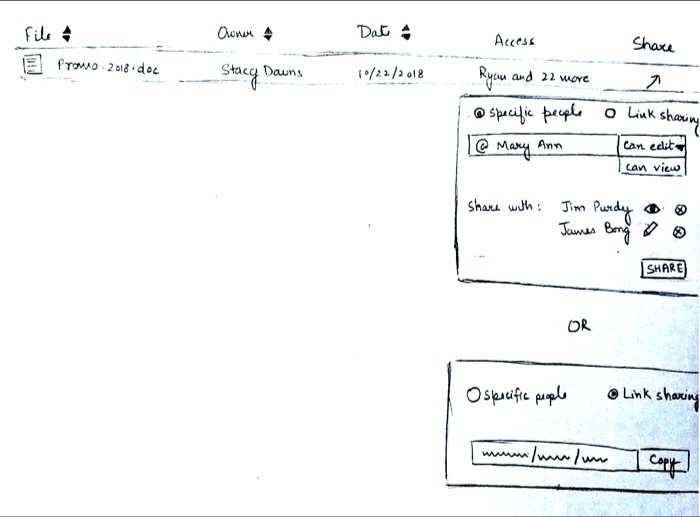
File access and contact preview
Easy file sharing
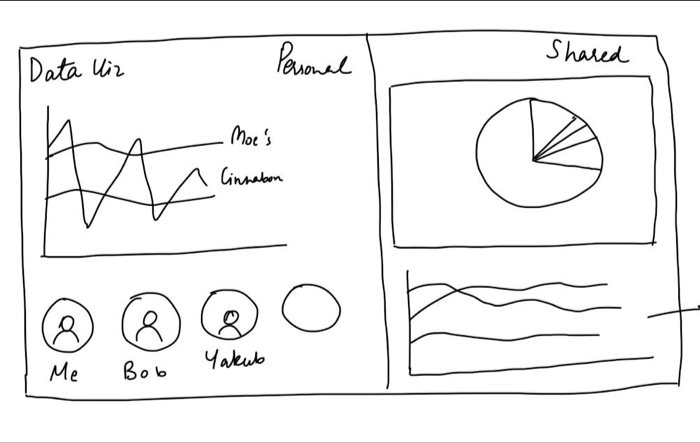
Concept 3: All-in-one dashboard
Concept 3: All-in-one dashboard
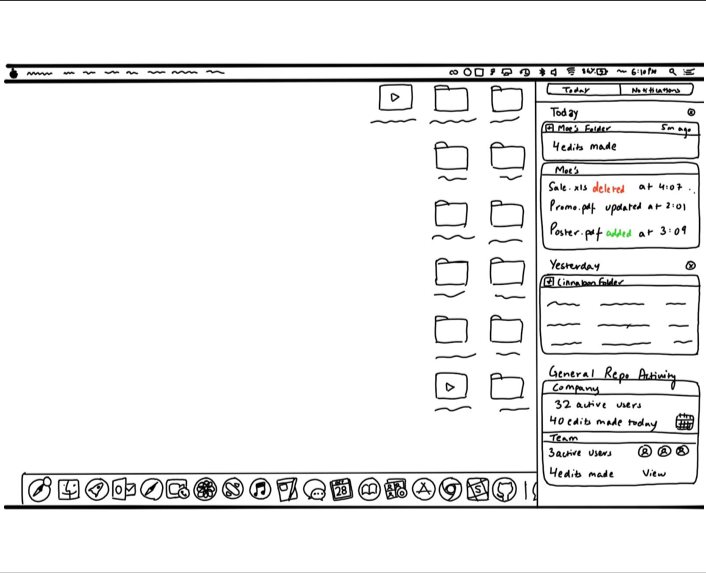
Analytics on files and folders
Dashboard
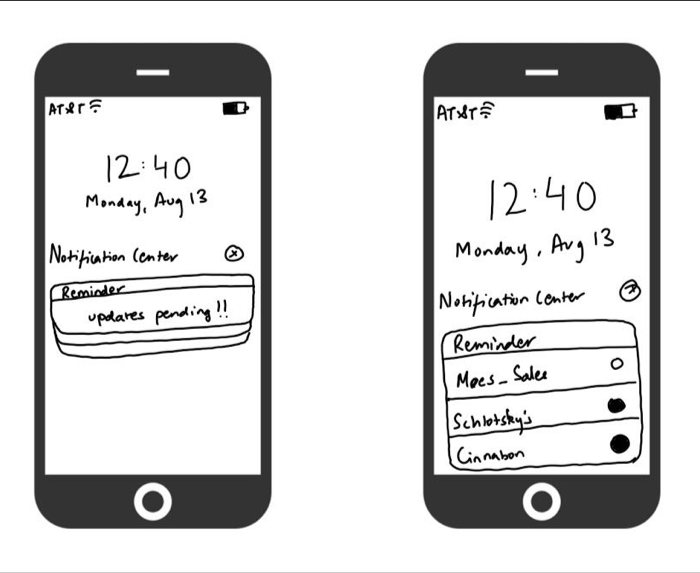
Concept 4: Notifications for management
Concept 4: Notifications for management
Desktop notification
Mobile notification
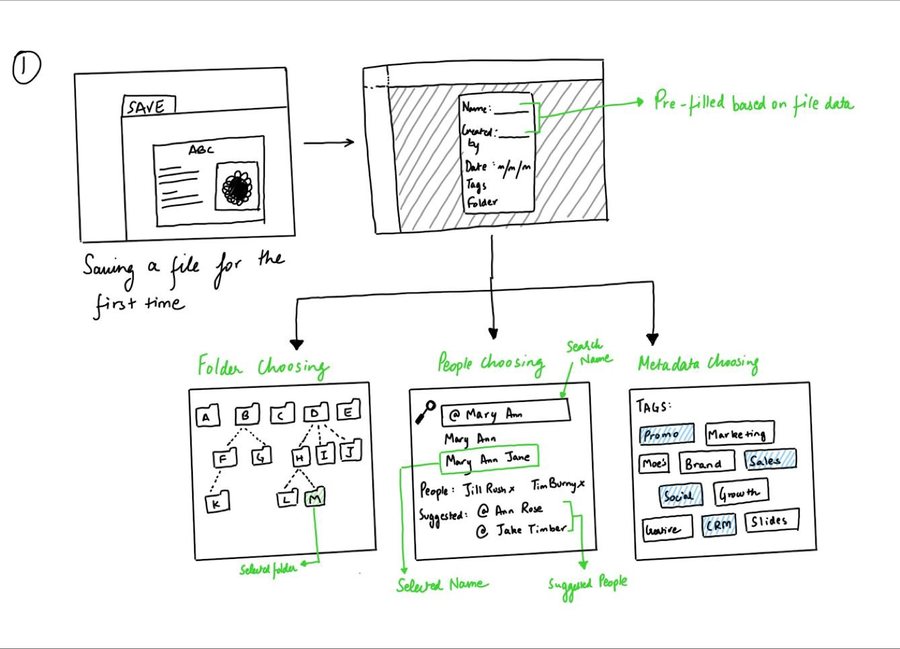
Concept 5: File tagging
Concept 5: File tagging
Adding metadata information like exact location, tags and people while saving the file
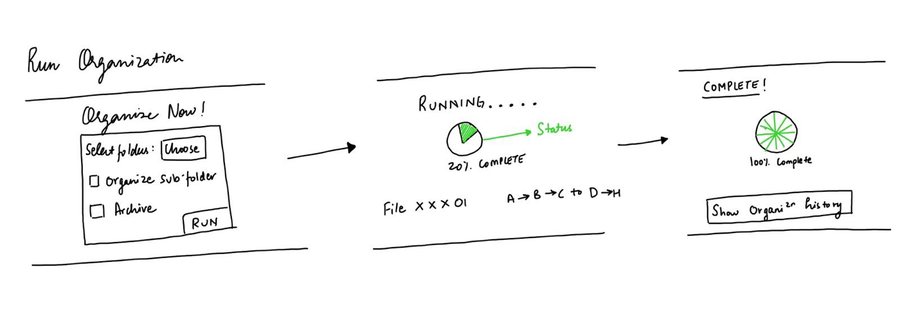
Concept 6: File Auto-Organizer
Concept 6: File Auto-Organizer


Running the organizer to automate file organization process
We scheduled feedback sessions with Focus Brands employees, which were to be conductedremotely through video conferencing. Utilizing this feedback, we refined our sketches into afirst version of wireframes and click-through prototype, which we used in the second round offeedback sessions with our participants
We scheduled feedback sessions with Focus Brands employees, which were to be conducted remotely through video conferencing. Utilizing this feedback, we refined our sketches into a first version of wireframes and click-through prototype, which we used in the second round of feedback sessions with our participants


This process of iterative designing led us torevisit our goal of creating new researchrepository. As we received more and morefeedback, it became clear that, given the varietyof tools & and platforms, users won’t beinclined towards adopting yet another platform.
Additionally we observed that it would beeasier to create add-ons for a platform thatpromotes file-sharing, organization andsearching, as well as, is widely used within thecurrent ecosystem. Hence, we chose to designplug-ins for Microsoft Sharepoint.
Stage 4: Design
This process of iterative designing led us to revisit our goal of creating new research repository. As we received more and more feedback, it became clear that, given the variety of tools & and platforms, users won’t be inclined towards adopting yet another platform.
Additionally we observed that it would be easier to create add-ons for a platform that promotes file-sharing, organization and searching, as well as, is widely used within the current ecosystem. Hence, we chose to design plug-ins for Microsoft Sharepoint.
Stage 4: Design